 Mirrord
Mirror your Android phone to a PC, and control it
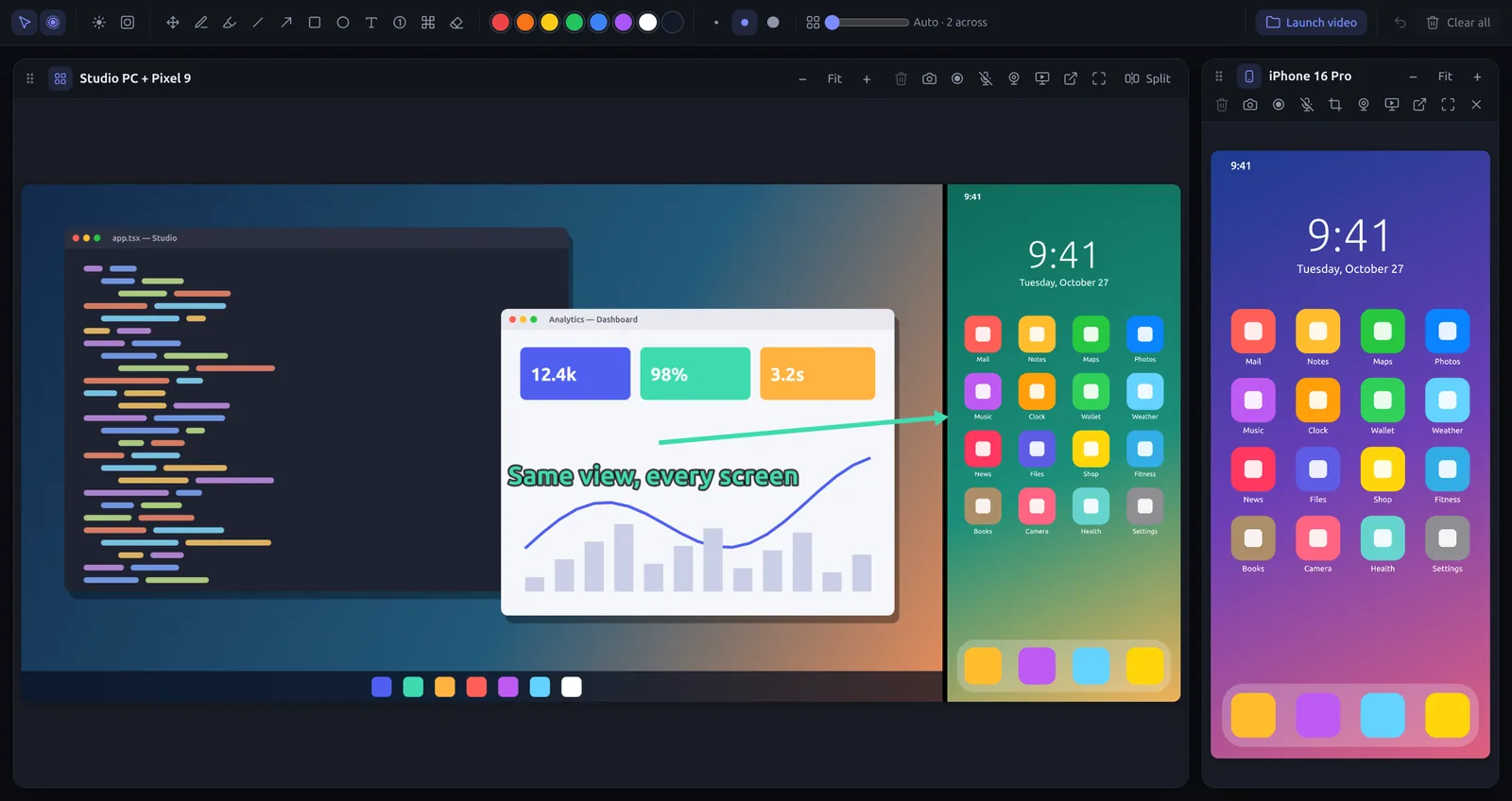
Mirrord shows your Android phone on your computer two ways: over Wi-Fi with the free Mirrord app (no developer options), or over USB or wireless debugging, with full mouse and keyboard control. Either way you can draw on it and record it.
How to do it
- Install Mirrord on the computer. Windows, macOS or Linux, from this site.
- Get the app on the phone. Install Mirrord from Google Play (scan the QR code in Mirrord’s Android card). The phone and computer must be on the same Wi-Fi.
- Connect. Open the app and tap your computer, then allow screen sharing. The phone’s screen and sound appear in the Screens window.
- Control it (optional). Turn on “Let the computer control this phone” in the app, or connect by USB with USB debugging on: then click to tap, drag to swipe and type on your keyboard.
Wi-Fi or USB?
The Mirrord app over Wi-Fi is the easiest: no cables and no developer options. USB or wireless debugging needs developer options turned on once, and gives the smoothest picture with full control. Mirrord pairs wireless debugging with a QR code.
Extras for Android
- Drop a file on the phone’s screen to send it (an APK installs).
- Copy on the phone, paste on the computer, and Ctrl+V pastes on the phone.
- Turn the phone’s screen off while you use it from the computer.
Try Mirrord free
For Windows, macOS and Linux. Mirror one screen free; Pro is $29 once, for 2 computers.
Questions
Which Android versions?
Android 10 or later. The phone’s sound needs Android 11 or later.
Is it free?
Yes, one screen at a time. Mirrord Pro shows up to 6 at once and adds the editor.