 Mirrord
Record a mobile app demo that looks polished
A good app demo shows where you tap, zooms in on what matters, and fits wherever you’re posting it. Mirrord does all three: record the phone from your computer, then let Auto zoom and a phone frame do the polishing.
How to do it
- Mirror the phone. Show your iPhone (AirPlay or the Mirrord app) or Android phone in Mirrord on your computer.
- Turn on Show taps, and record. Show taps draws a ripple wherever you click the phone’s screen. Press record (Ctrl+Shift+R), and add your voice with the microphone button. Ctrl+Shift+B drops a marker at any moment you want to find later.
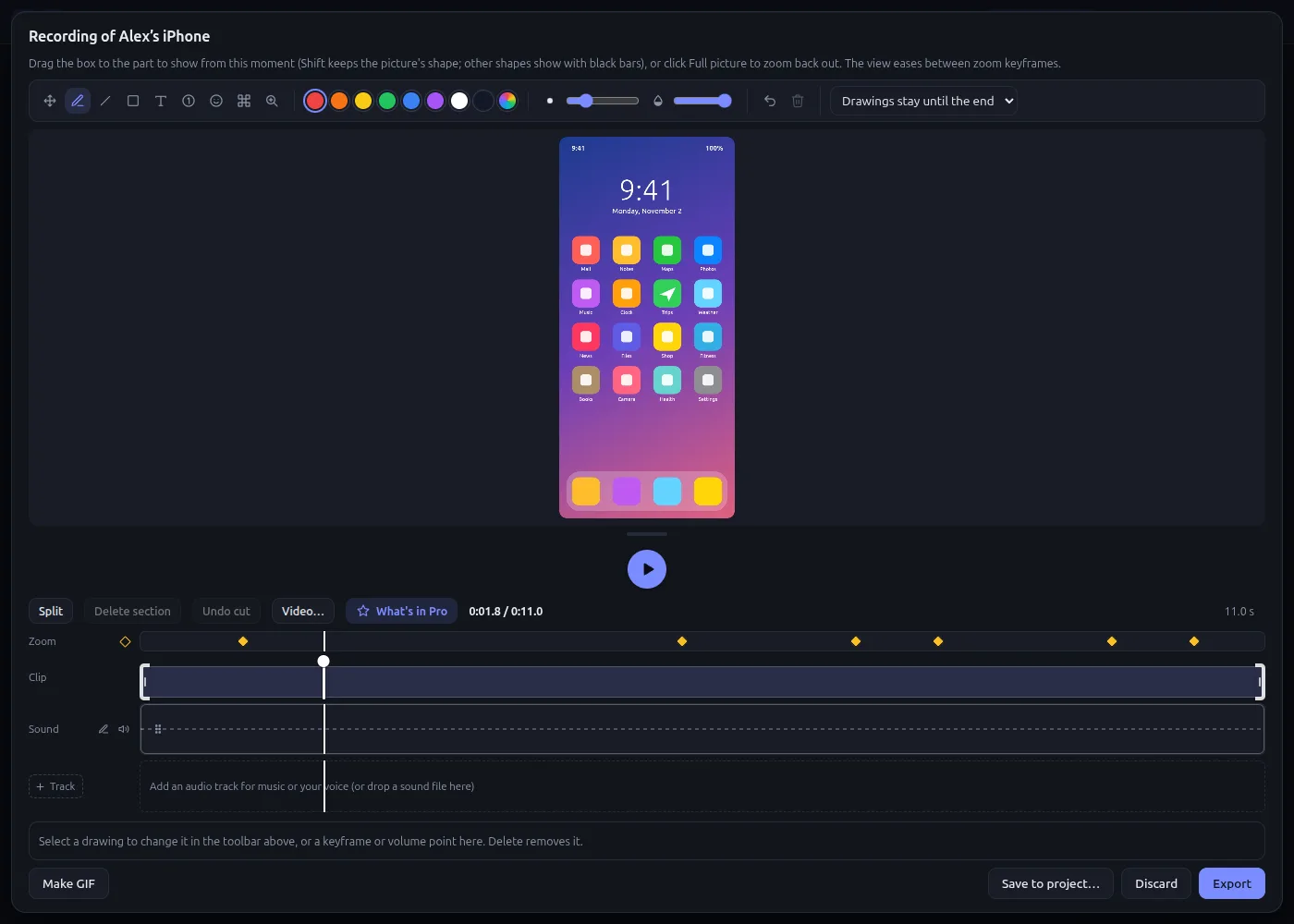
- Let Auto zoom do the zooming. In the editor, choose Zoom → Auto zoom: it zooms in on what you tapped, drew or pointed at, and back out between. Change any moment, or remove it.
- Add titles, cut the pauses. Titles adds a title card, a name banner or your logo. Cut silences takes out the pauses, and any slow part can play at 2× or 4×.
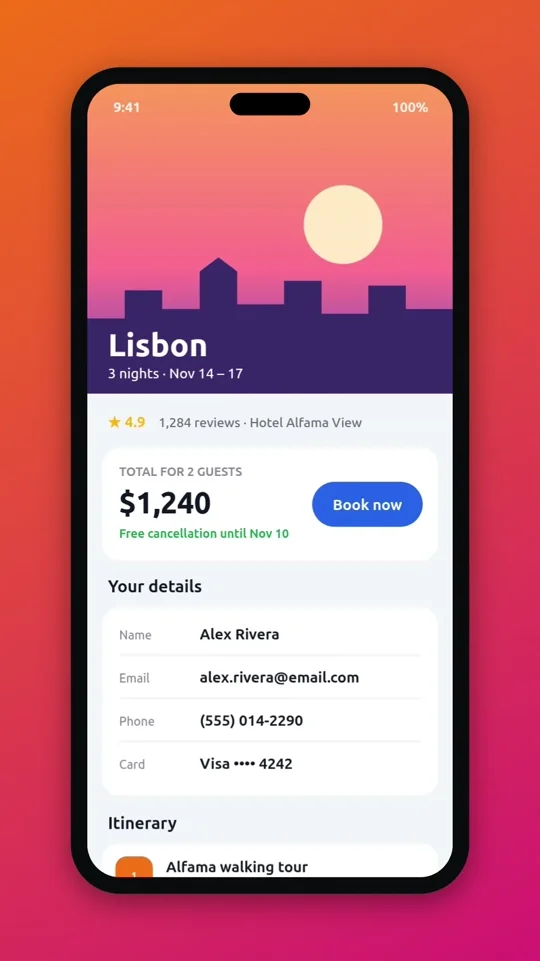
- Export for where it’s going. Choose 9:16 for Shorts, Reels and TikTok, 1:1 or 16:9, with a phone or window frame on a gradient, and export MP4 or a GIF.
Why not just screen-record on the phone?
The phone’s own recorder can’t show your taps, has no zoom or titles, and you still have to move the file and edit it somewhere else. Recording from your computer keeps it all in one place, with a full keyboard and mouse.
Auto zoom
Auto zoom follows what you did while recording, so the viewer always sees the part of the screen that matters, without you keyframing anything.
Try Mirrord free
For Windows, macOS and Linux. Mirror one screen free; Pro is $29 once, for 2 computers.
Questions
Which features need Pro?
Recording, drawing and exporting are free (15 minutes a recording). Auto zoom, titles, speed, frames and the full editor are Mirrord Pro, $29 once.
Can I record two phones at once?
Yes, with Pro: put them side by side (or a phone over your computer’s screen) and record them as one picture.